Step1: Excel Security Options and VB Options
- For ADFdi to work in Excel and word, the following steps have to be performed.
- Open an empty excel spreadsheet.
- Navigate to Excel Options.
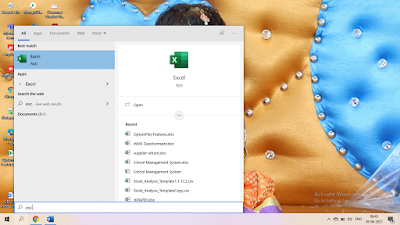
- Click on Options. Navigate to Trust Center.
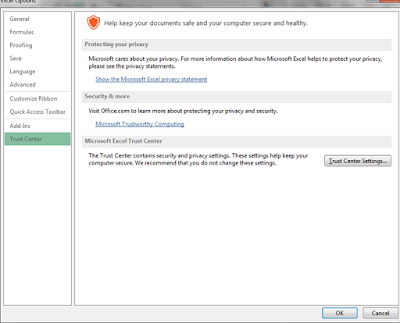
- Click on Trust Center Settings.
- Navigate to Active X settings and make sure it looks like the below.

- Navigate to Macro Settings and make sure it looks like this.

- Navigate to Excel Options and click on Add-Ins and select Com Add-Ins as shown in below screenshot and select Go.

- And check if Oracle ADF Desktop Integration Add-In for Excel and Smart View for Office are enabled.

Step3: Internet Explore Settings
- Sometime Client IE Browsers may have a lot of security enabled to prevent attacks. If you want to consider moving the oraclecloud.com domain to the Trusted Sites area.

Step4: ADF Desktop Integration Setting Checker
- Oracle Support has created a tool to check ADF Desktop Integration settings and is available as an exe. The exe should be downloaded and run and will list issues that can be resolved.
- How to use ADF Desktop Integration Client Health Check Tool (Doc ID 2010222)
